Start the Broadcast #
Open CHROME and goto https://www.youtube.com/c/DunfermlineAbbey. It should already be logged into the Abbey Account signified with the Abbey shield at the top right of the window.
Click the  Icon at the top of the screen and then Select GO LIVE
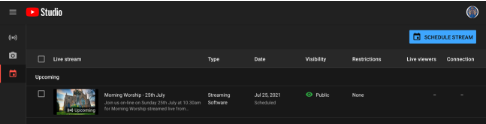
Click the stream from the list – There probably will only be one, just ensure the date and time are as expected
When you are ready to start broadcasting, in OBS Studio APP Select ‘Start Streaming’ from the Controls Menu under the Programme Window
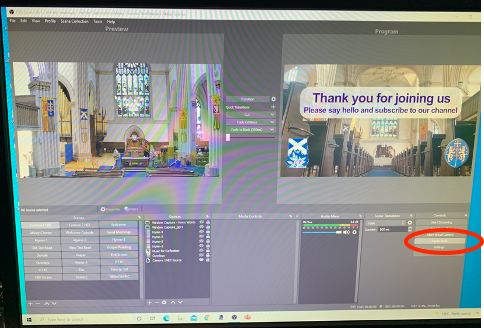
After a few seconds, in CHROME the GO LIVE button will go red and the preview screen will show the feed form OBS. When you are ready to start the feed click GO LIVE.
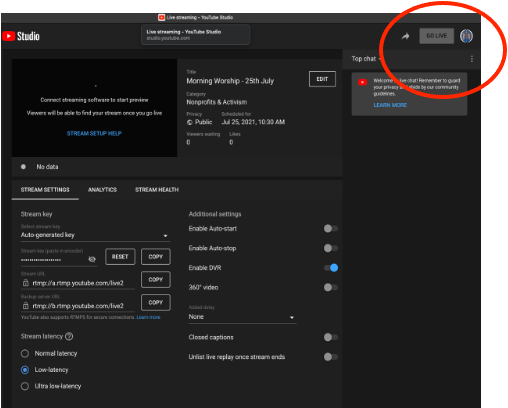
****YOU ARE NOW LIVE ON THE INTERNET!!***
Running the Broadcast #
Audio During the Broadcast #
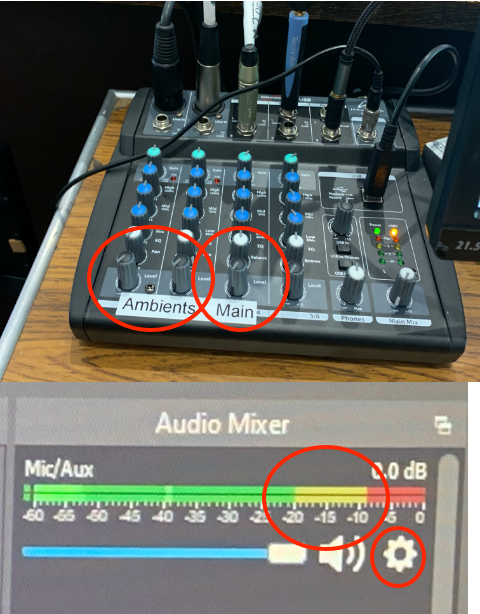
During the service, turn both dials of the Ambients Level Dial to 12 O ‘Clock. These can be left on throughout the broadcast
During the service, to broadcast the Audio from the Table or Lectern Mic Turn the Main Level Dial (nominally to 11 O ‘Clock)
The volume is acceptable if the level in the Audio Mixer Window in OBS is in the AMBER section. If it is in green turn up the level a bit, and if it is in red turn it down. This should be done as someone starts to speak to set the general level and shouldn’t need adjusted through the piece.
During Hymns turn the Main Audio back to 8 or 9 O’clock. You may need to warn the minister before the service starts that the table mic is on during the hymns and they may want to stand away if they don’t want to be heard singing on the broadcast
If during setup, once the mic levels have been turned up, there is no Audio registering on the Audio Mixer in OBS then click the Gear Icon in the Audio Mixer and select Properties then select the Microphone Array (USB PnP Audio Device) from the device drop down list
The headphones plugged into the phones socket on the mixer can be used to monitor the ausio output to the stream. The level is adjusted by the Phones volume dials towards the bottom right of the Desk